This is a continuation from the previous post.
Setting The Stage
The game we’re building will have waves of enemy ships fly in to attack the player’s units. Let’s begin by making a simple enemy as well as some dummy targets for them to attack. I’m going to keep the graphics very simple for the moment. Likewise we are going to focus on the enemy behavior and not worry about any player interaction just yet.

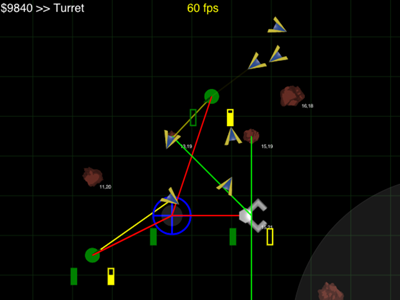
Here’s a demo of what we’ll make. Click on the start screen to transition into the game. The little yellow rectangles are our enemy ships. Each one projects its own target as a little red circle. Once it touches its target, it projects a new one and then flies toward it.
Let’s start from the top down. Our enemy units will “live” in our main screen for the game. (At least for the time being.) This screen needs to expose the same interface that we had for the start screen we made in the last post. We’ll also add a start method that we’ll call just once in order to initialize things.
Implementation
Here’s the implementation:
Explanation
The entities array will contain a list of the enemies we’re tracking. I used the name “entity” because this is a common term in game development. In general, it means something that has behavior and is drawn to the screen. Thus, you can expect entities to have update and draw methods. This is not a hard and fast definition though. You’ll find that the specifics of the definition can vary among engines, frameworks, and developers.
In our start function we populate entities by invoking our (as yet undefined) makeEnemyShip function. I’m passing in two numbers that makeEnemyShip will use to set the x and y position of the ship. I could have used random numbers or even hard coded values, however deriving from the loop’s controls makes it easy to cluster all the ships in the upper left corner of the screen.
The draw and update functions for the screen are very similar. They both iterate over entities and invoke the corresponding function on each entity. They also pass along the necessary context. For draw, this is the 2D drawing context of the canvas and for update it’s the elapsed time since the last frame.
Notice how the loop is structured differently from the loop in start. This is a performance optimization; though it has little consequence with so small an array. On some browsers, the call to length is a bit expensive. (Especially in cases when the array isn’t an array, but something that is array-like.) This adds up when you make the call once per iteration of the loop. We move it out of the loop so that we only call it once. Check out this test. Performance optimizations are tricky and change every time new browsers are released. It’s easy to get confused, and I recommend profiling your code frequently to look for hot spots rather than just guessing about optimizations. I hope to talk more about them later, but if you want more now check out the book High Performance JavaScript by Nicholas C. Zakas.
I had originally written my loops using the newer Array.forEach to iterate over entities. However, this proved to be significantly slower than a for loop.
The screen’s draw method also resets the canvas at the beginning of each iteration. If we did not do this, then every thing we drew on previous frames would still be present. For the start screen, I used clearRect however here I used fillRect with a solid color.
Here’s a function that will produce a simple enemy. It follows the same structure we’ve been using, update to handle the behavior and draw to actually draw it on the screen.
Some Bad Guys
Our enemy ships are a little more complicated than the screen they live on. Visually, they appear to have two components. The little yellow rectangle that moves about the screen and the phantom target that they project as a little red circle. In the final game, they will target one of the player’s units. However, the logic is very similar. In fact, it may become useful in debugging to how each enemy ship render something over it’s actual target.
Implementation
Explanation
Each enemy ship will be responsible for tracking its own state. In this code, the state is captured in a closure. In later code, we’ll track the track in a more traditional way. (I haven’t ran tests yet but I think that using a closure may have a performance impact.)
All of these variables represent the enemy ship’s state.
var position = { x: 0, y: 0 };
var orientation = 0;
var turnSpeed = fullCircle / 50;
var speed = 2;
var target = findNewTarget();
position is the location on the screen where we will render our ship.
Technically, the is the position in “world space”. World space is the logical space that entities in your game “live in”. This is distinct from “screen space”, which corresponds to the actual pixels on the screens. You can think of it this way: in your game you might have a circle with a radius of 10 and located at (100,100). However, where you draw it on the screen will depend upon where the player is viewing it from. If the player zooms in, the circle will grow larger but this doesn’t change the logical position or radius of the circle. We use the term “projection” to describe this. We project from world space into screen space based upon how the player is viewing the game world. The simplest project of course is just 1:1. Which means that there is no difference between world space and screen space. That’s what will stick with for the moment.
orientation is the direction the ship is currently facing. Our ship will always travel in the direction of its orientation. This constraints causes the ship travel in smooth arcs as opposed to abruptly changing its course.
turnSpeed and speed represent how quickly the ship can turn and how fast it can travel respectively. We won’t be modifying these values after setting them, which means the ship will turn and travel at constant rates. These values represent the rates of change for orientation and position. Note also, we defined turnSpeed in terms of fullCircle. This is an alias for Math.PI * 2; we are dealing in radians and not degrees.
target is a value with the shape { x: Number, y: Number }. The ship will always attempt to move towards this value by adjusting its orientation.
Update
The update function is the real meat of the enemy ship. First, we check to see if we are close to our target. If we are close enough, we consider our goal accomplished and we set a new target. Otherwise, we change our orientation so that we are flying toward our current target.
var y = target.y - position.y;
var x = target.x - position.x;
var d2 = Math.pow(x, 2) + Math.pow(y, 2);

Here, x and y are really the distance between target and position along the respective axises. We want to know these values in order to calculate the distance between them. In general, you use the Pythagorean theorum to calculate distance. For deeper dive into the math, watch Distance Formula on Khan Academy. Finding the actual real distance uses a square root and calculating a square root is an expensive operation that’s best to avoid whenever you can.
We can bypass the need by working with the distance² (hence the variable name d2). We compare this against the hard-coded value of 16 (that’s 4²). In other words, if the distance between the ship and its target is less than 4 units we find a new target.
if (d2 < 16) {
    target = findNewTarget();
}
Once we’ve established what the ship’s target should be, we want the ship to move toward the target. As I’ve just mentioned, I’ve chosen to have the ship move at a constant speed. This means that it does not slow down or speed up. The only thing it can do is to change the direction it’s facing (orientation). These sort of constraints determine the personality and character of your game. Bear in mind, you don’t need to simulate the physics to have a fun game. Instead, you need to establish behaviors for your game entities that are merely fun. Fortunately, fun behaviors can often be easier to implement that the actual physics. I recommend taking a look at the demo and tweaking the turnSpeed and speed values to get a small taste for how the behavior can affect the game’s character.

In order to change the ship’s orientation we need to first determine where the ship ought to be facing. The values of x and y we just calculated can be interpreted as a vector. Meaning, it represents the direction and distance (magnitude) from the ship to the current target. To extract the actual angle (in radian) we use Math.atan2(x,y).
var angle = Math.atan2(y, x);
var delta = angle - orientation;
So now we have the direction the ship wants to face, angle, and the direction that it is facing, orientation. We calculate the difference between them and store it as delta.

The basic idea is that add the value of turnSpeed to orientation once each invocation of udpate until delta is 0 (meaning that the ship is flying directly at the target). However, some values of delta will cause the ship to “turn the wrong way”. For example, imagine that the ship is facing the top of the screen and that we’ve defined that as orientation === 0. Now, imagine that the target is directly to its right. The value of angle would be π/2 (or 90°). Adding turnSpeed to orientation each frame increments the value from 0 to π/2. However, if the target is directly to the left, then the value of angle would be 3π/2 (or 270°). Simply incrementing orientation would cause the ship to turn right and keep turning right. This is unintuitive behavior; we expect the ship to turn the shorted distance. In order to accomplish this, we translate any value of delta higher than π (180°) by subtracting fullCircle. This normalizes the value of delta between -π and π (or between -180° and 180°).
var delta_abs = Math.abs(delta);
if (delta_abs > Math.PI) {
    delta = delta_abs - fullCircle;
}
We take the absolute value of delta because otherwise we’d have to check for delta < -Math.PI as well. Also, we’ll use delta_abs again.
If delta is 0, we don’t need to change orientation. When it is different we need to modify the value of orientation.
if (delta !== 0) {
    var direction = delta / delta_abs;
    orientation += (direction * Math.min(turnSpeed, delta_abs));
    orientation %= fullCircle;
}
First, we decide how much to change it using Math.min(turnSpeed, delta_abs). We could just use turnSpeed. However if we did it’s likely that delta would never quite be 0 and (depending on the size of turnSpeed) it could result is jittery motion. Secondly, we want to decided which direction to turn: positive values to the right and negative values to the left. We multiply the amount direction to change the sign, because direction will only ever be 1 or -1. Finally, we modulo orientation to ensure that it stays within a range of -2π to 2π. Otherwise, the calculation of delta would be off.
Our last step in update is to modifiy the actual position using the latest orientation and speed.
position.x += Math.cos(orientation) * speed;
position.y += Math.sin(orientation) * speed;
Some basic trigonometry is fairly fundamental for most game development. If you’re mathematically lost at this point, I recommend reviewing over at Khan Academey.
Here’s the geometric interpretation of the code. We want the ship to move a distance of speed in the direction of orientation. To do this, we need to project this vector (distance and direction) on the x and y axises. Since the distance is the length of the hypothenuse of right triangle, cosine gives us the x part and sine gives us the y part. We can then add these values to the current position.
Draw
Drawing the ship to the screen is a bit easier to follow. Here’s the flow of the logic:
- Save the state of the drawing context.
- Transform the context to make it easier to draw our ship.
- Draw the ship.
- Restore the context back to its original state.
Draw the target
  function draw(ctx) {

      ctx.save();

      ctx.translate(position.x, position.y);
      ctx.rotate(orientation);

      ctx.fillStyle = 'yellow';
      ctx.fillRect(-3, -1, 6, 2);

      ctx.restore();

      ctx.beginPath();
      ctx.fillStyle = 'rgba(255,0,0,0.5)';
      ctx.arc(target.x, target.y, 2, 0, Math.PI * 2, true);
      ctx.fill();
  }
Recall that ctx is the drawing context for the canvas. The context provide a useful API that allows us to move it around before we draw on it. This is analgous to having a sheet of paper that you might shift and rotate in order to make it easier to draw something complicated. This is the purpose of the translate and rotate methods.
First, we use ‘save’ to establishing a checkpoint for the drawing context that we can easily revert back to using ‘restore.’ The calls to translate and rotate modify the state of the drawing context. This modified state is very specific to the drawing of our enemy ship. If we didn’t translate and rotate the canvas, we’d have to do a lot more work to figure out where to draw the four corners of the rectangle.
I decided that I want my ship to be 6px long and 2px wide. Since I want the middle of the middle of my ship to be the point where it rotates, I shift by half the length and half the width. Hence, the values passed to ctx.fillRect(-3, -1, 6, 2). This point the new origin (0,0) at the middle of the rectangle, and it makes our call to rotate behave intuitively. If we used ctx.fillRect(0, 0, 6, 2) instead, then the ship would appear to rotate around its upper left corner. We’ll use these same techniques once we switch to using sprites.
After we restore the context’s state, we draw the target. We don’t bother using rotate because it’s meaningless to rotate a simple circle. Likewise, we don’t bother translate since the drawing logic is so simple.
The canvas is a broad topic in itself. I recommend taking a look at the tutorials over at MDN. A handy reference for the APIs themselves can be found on MSDN.